Items
Items are the goods or services that your business offers customers. Click on the Items menu to add new items from the top of the page.
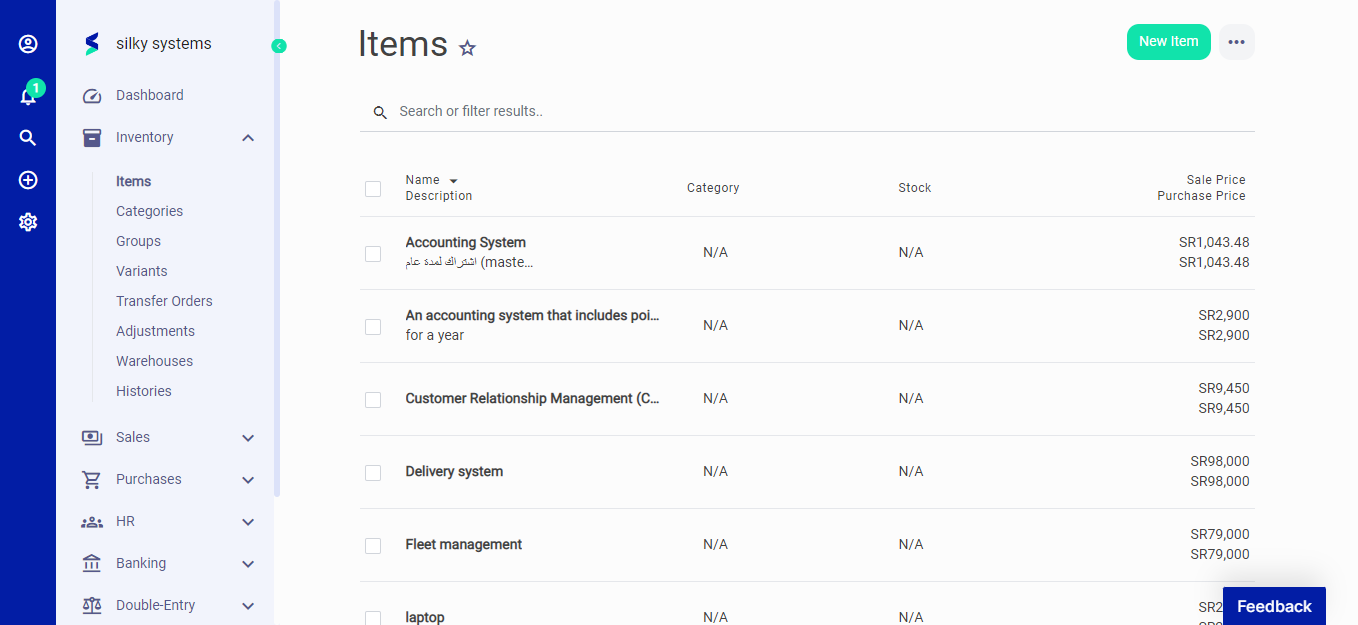 Figure.01 Items
Adding New Item
The "New Item" form is an integral component of inventory management in a marketplace system. This form allows for the addition of items into the inventory database with details that are pertinent to sales, purchasing, and tracking. Below is a detailed guide on how to fill out this form effectively to ensure accurate inventory management and reporting.
Form Fields and Instructions
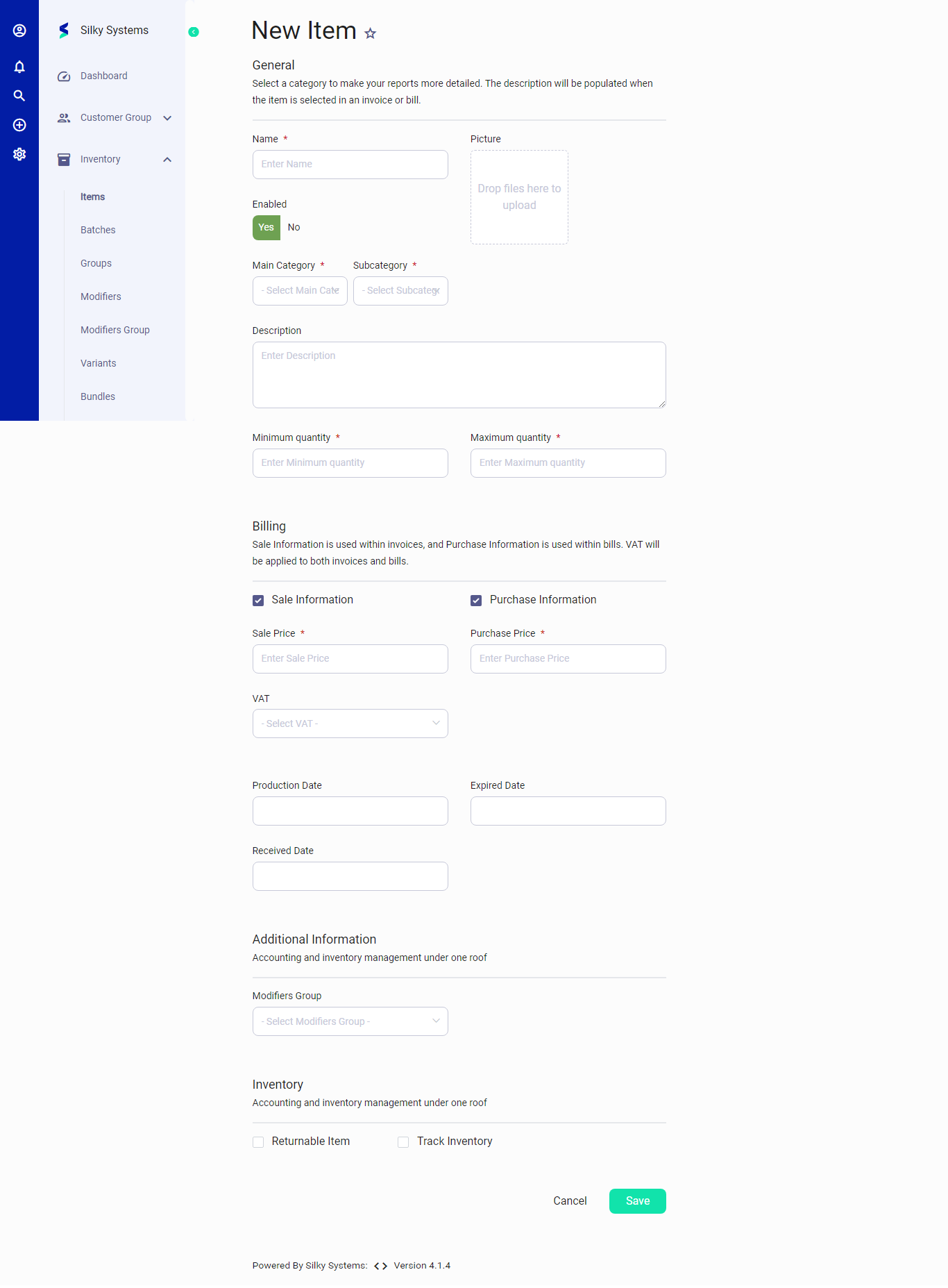 Figure.02 Items
General Section
-
Name: Enter the name of the item as it should appear in the inventory list. This field is usually required and should be clear and descriptive.
-
Picture: Here you can upload an image file of the item. This is typically done by dragging and dropping a file into the outlined box or by clicking in the box to open a file explorer and select a file manually. An image can help users quickly identify the item in the system.
-
Enabled: Specify whether the item is currently available for sale or not. If 'Yes' is selected, the item will appear in the inventory listings and be available for transaction processes.
-
Main Category & Subcategory: These dropdowns are for classifying the item into hierarchical categories. Select the relevant main category and then the more specific subcategory to help organize the inventory and make the item easier to find.
-
Description: Provide a detailed description of the item. This information may be shown on invoices or bills and can include specifics like size, color, or any other relevant details.
Quantity Section
-
Minimum Quantity: The minimum stock level before reordering is triggered. Entering a value here helps prevent stockouts.
-
Maximum Quantity: The maximum stock level for the item. It ensures that the inventory is not overstocked.
Billing Section
-
Sale Information: This section captures the details of the item when it is sold.
- Sale Price: Enter the retail price of the item as it will be sold to customers.
- VAT: Select the value-added tax rate that applies to the item, if any.
-
Purchase Information: This section deals with the details of the item when it is purchased from a supplier.
- Purchase Price: Enter the cost price of the item as it is purchased from vendors.
-
Production Date: The date on which the item was manufactured or produced.
-
Expired Date: The date after which the item should no longer be sold or used.
-
Received Date: The date on which the item was received into inventory.
Additional Information Section
- Modifiers Group: If there are modifiers applicable to the item (like sizes, flavors, etc.), they can be selected from a predefined group of modifiers in this dropdown.
Inventory Section
-
Returnable Item: Check this box if the item can be returned by customers.
-
Track Inventory: Checking this will enable inventory tracking for the item, updating stock levels as sales and purchases occur.
Final Steps
After all relevant fields have been filled accurately:
-
Review the entered information to ensure all details are correct and all required fields have been filled out.
-
Click 'Save' to add the item to the inventory database. If you decide not to add the item or need to restart, click 'Cancel' to clear the form or exit without saving.